You have your IMVU file. This guide takes you from the zip to a live product in your IMVU shop, step by step. It works for every file in our shop, free or paid, and no 3D skills are needed.
What is in the zip
├─ README.txt exact upload steps and your credit line
├─ IMVU/ files for Create Mode
│ ├─ chesterfield_sofa.xmf the mesh
│ ├─ chesterfield_sofa_furniture_RIG.xsf skeleton with tested sit nodes
│ ├─ chesterfield_sofa_idle.xaf idle action
│ └─ *.xrf material files
├─ Colors/ Original, Black, Cognac, Cream, Green, Navy, Oxblood
└─ Previews/ renders you can use for your icon
The number at the start of each texture name is its material slot: 00_…png goes to Material 00, 01_…png to Material 01. Accessory zips have the same folders. Bags and necklaces add a small attachment skeleton; hats, crowns, glasses and earrings have none, because their base product already sits on the head.
Before you start
- VIP. Submitting products needs VIP Platinum, Diamond or Emerald. Earning real money (not only credits) needs Platinum or Diamond. See VIP tiers explained.
- Submission fee. 500 credits at Creator Tier 0, 35 credits less for every tier you climb.
- A tool. Classic Create Mode or IMVU Studio both work. You can check every file first in our free Creator Studio, right in your browser.
- Size. IMVU has a product size limit. Our files are optimized for Create Mode; use the textures exactly as they come.
Upload a furniture file in 6 steps
- Unzip and pick a colour. Read
README.txt, then open theColors/folder and choose the colourway you want to sell first. You can publish the other colours later as separate products. - Derive from a furniture base. In IMVU go to Create › Furniture and derive from a furniture base product, for example 12908.
- Load the skeleton and mesh. In Config, set the skeleton to the
…_furniture_RIG.xsffile. Then set Mesh 0 to the.xmffile. - Add the textures and the action. Put each PNG on the material with the same number, using the colour folder you picked, and untick vertex colours. In Actions, add the
…_idle.xaffile asstance.Idle. - Sit test. Place the piece in a room and sit on every sit node. Every file is tested in IMVU before it goes on sale, so if something is off, it is usually a texture in the wrong slot.
- Price it and submit. Paste the credit line from
README.txtinto your product description, make a 100×80 icon with our free Catalog Image Maker, set your markup and submit. Every sale from then on earns you credits.
Upload an accessory file in 4 steps
- Derive from the base in README.txt. Bags and necklaces use IMVU’s Empty Female Accessory, product 56816049, which has no derive fee. Hats, crowns, glasses and earrings use IMVU’s product 682, already attached to the head. Check the derivation fee in the submission window before you set your profit.
- Skeleton and mesh. Bags and necklaces: upload the
…AttachmentNode.xsfand set the Attachment Point in Config to the one in README.txt (for examplertHandfor bags). Head items: keep the skeleton as it is. Then add the.xmfas the mesh. - Add a colour. On Material 00, load the texture from the colour folder you want.
- Try it on, then submit. In Create Mode the avatar stands in a T-pose, so a bag can hang at an angle; it hangs straight in the normal pose. Paste the credit line into the description and submit.
Fix common problems
…_furniture_RIG.xsf file as the skeleton in Config and add the idle action as stance.Idle.README.txt for that file, and keep its skeleton.No mesh yet? Start with a derive
You can open an IMVU shop without any mesh at all: take a derivable product, put your own textures on it and sell it under your name. Our free Derive & Earn series shows how in three parts: become a creator, make your first derive and price it so it sells.
Try it with a free file first
Not sure yet? Grab one of our free IMVU files and follow this guide once. When your first product is live, the paid files work exactly the same way.
Files that work with this guide
See all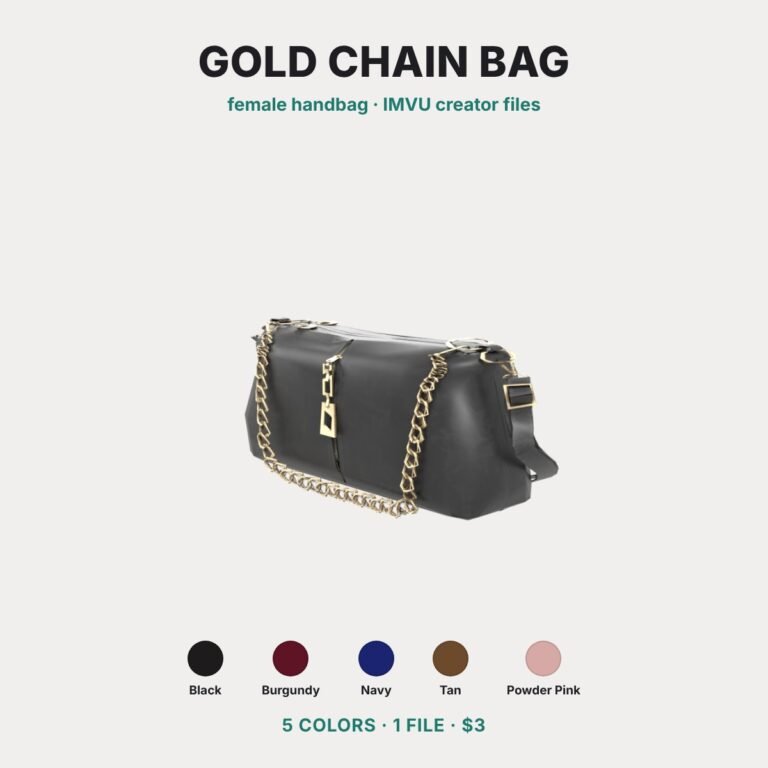 NEW
NEW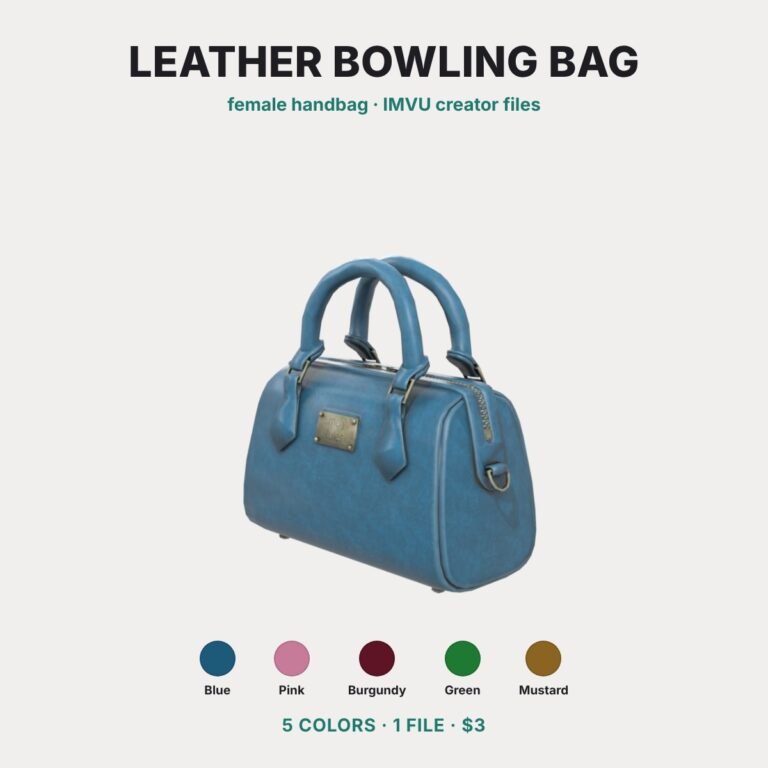 NEW
NEW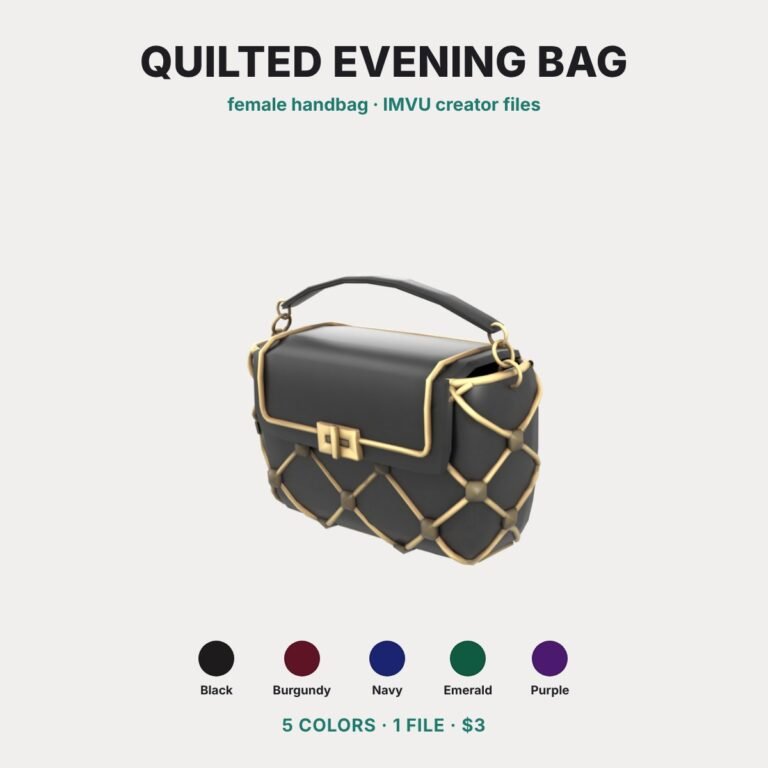 NEW
NEW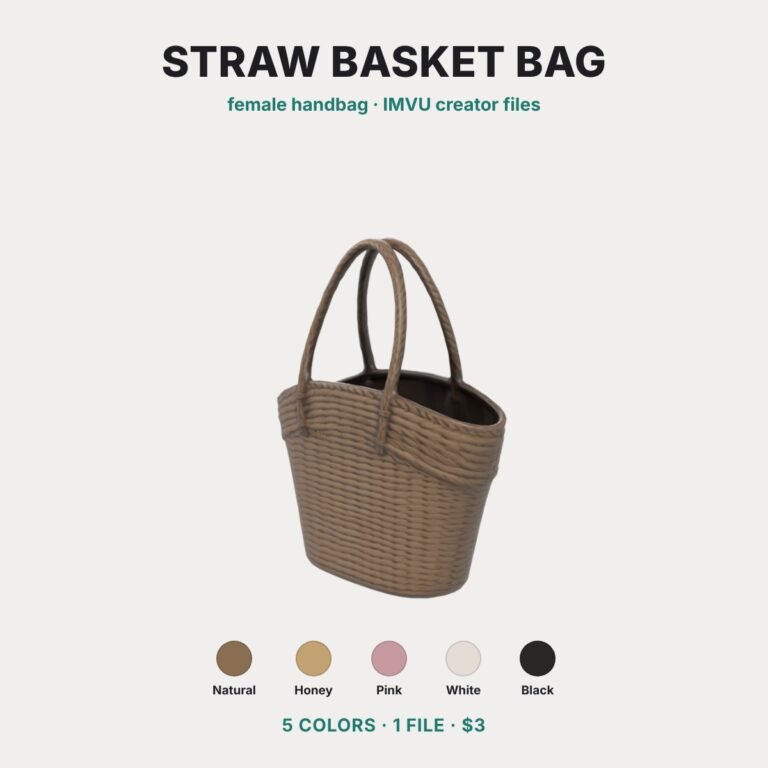 NEW
NEWIMVU Only is an independent fan site and is not affiliated with IMVU Inc. Rules and fees can change; check IMVU Help before you submit.